1. What you need
- A compatible server: Any NAS (Synology, QNAP, TrueNAS, Unraid), home server (Linux, macOS, Windows, Raspberry Pi), or personal cloud (Nextcloud, ownCloud, WebDAV storage) that supports FTP, SFTP (SSH), or WebDAV (HTTP/HTTPS).
- Connection details: Your server address (IP, hostname, or full WebDAV URL), port number (defaults: FTP 21, SFTP 22, WebDAV 443 or 80), and login credentials (Username and Password, or Anonymous Login for FTP).
- iOS permissions:
- Photos: Allow full photo library access when backing up photos or videos.
- Local Network: If your server is on your home/office Wi-Fi, tap Allow when iOS asks for local network access.
- Notifications: Recommended so BackupFlow can alert you when scheduled backups run or finish.
2. Backup Hub overview
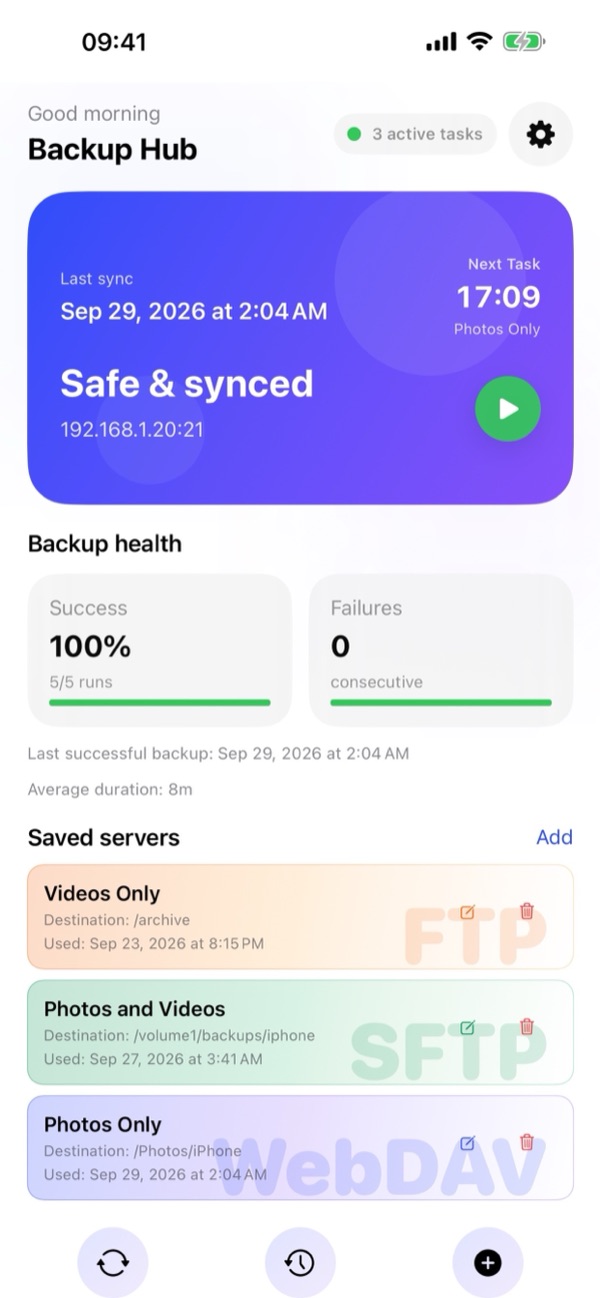
When you open BackupFlow, the Backup Hub gives you a real-time overview of your backup system:
- Status Banner: Displays your Last sync timestamp, the Next Task time and task name, your current protection status (Safe & synced), active server address, and a green Play (▶) button to launch a backup immediately.
- Backup health: Tracks your overall reliability with Success rate (percentage and completed runs), consecutive Failures, last successful backup date, and Average duration.
- Saved servers: Shows color-coded cards for all your configured FTP, SFTP, and WebDAV backup tasks, including destination path and last run time. Tap the Edit (✏️) icon to modify a task, the Delete (🗑️) icon to remove it, or tap anywhere on a card to open Task Details.
- Bottom Navigation & Settings: Use the three buttons at the bottom of the screen to Run/Sync (🔄), open Backup History (🕒), or create a New Backup (+). Tap the gear icon (⚙️) at the top right to open Settings.
3. Create a new backup
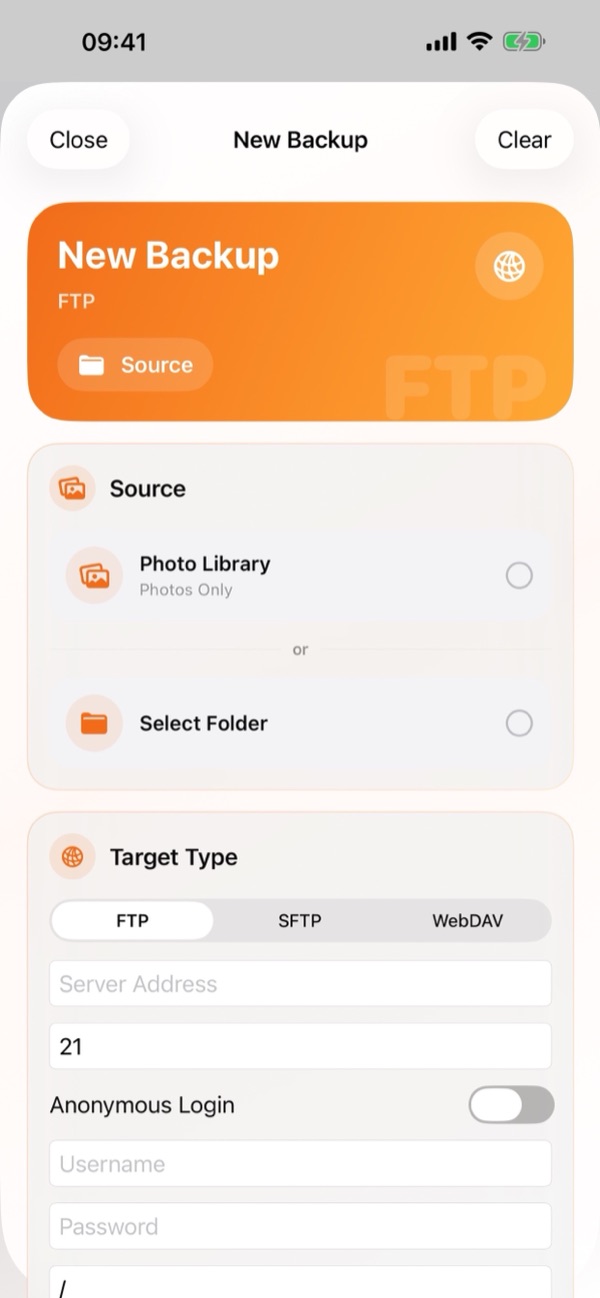
Tap the + button at the bottom of the Backup Hub (or tap Add next to Saved servers) to open the New Backup screen:
- Source:
- Select Photo Library to back up media from the iOS Photos app (choose Photos Only, Videos Only, or Photos and Videos), or
- Select Select Folder to pick any folder from the iOS Files app (On My iPhone, iCloud Drive, or external drives).
- Target Type:
- Choose FTP, SFTP, or WebDAV from the segmented bar.
- Enter your Server Address (for WebDAV, enter the full server URL) and Port (e.g., 21 for FTP, 22 for SFTP, 443 for HTTPS WebDAV).
- Enter your Username and Password (or turn on Anonymous Login if your FTP server allows anonymous access).
- Enter the destination path on the server (such as
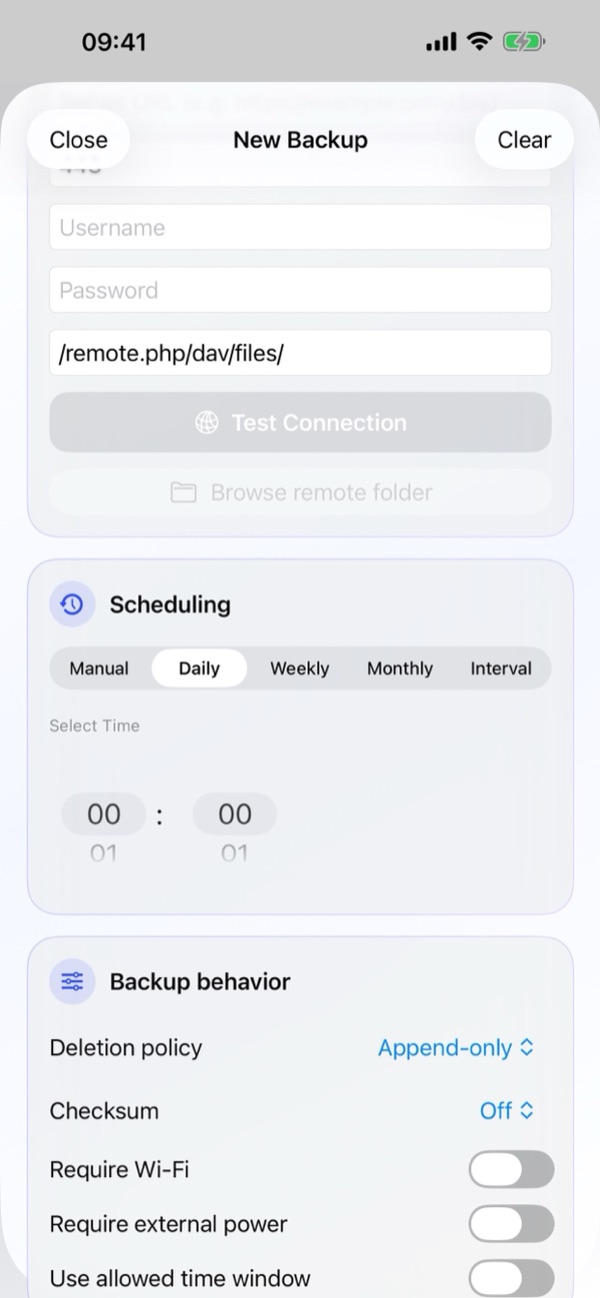
/backups/iphoneor/remote.php/dav/files/username/for Nextcloud). - Tap Test Connection to verify your server credentials, then optionally tap Browse remote folder to navigate and pick a folder directly on the server.
- Scheduling: Choose when the task should run (Manual, Daily, Weekly, Monthly, or Interval) and pick a time under Select Time.
- Backup behavior: Configure your Deletion policy, Checksum verification, and network/power conditions, then save the task.
After your first backup completes, BackupFlow tracks transferred files and uploads only new or changed files on future runs, making subsequent backups much faster.
4. Task Details & management
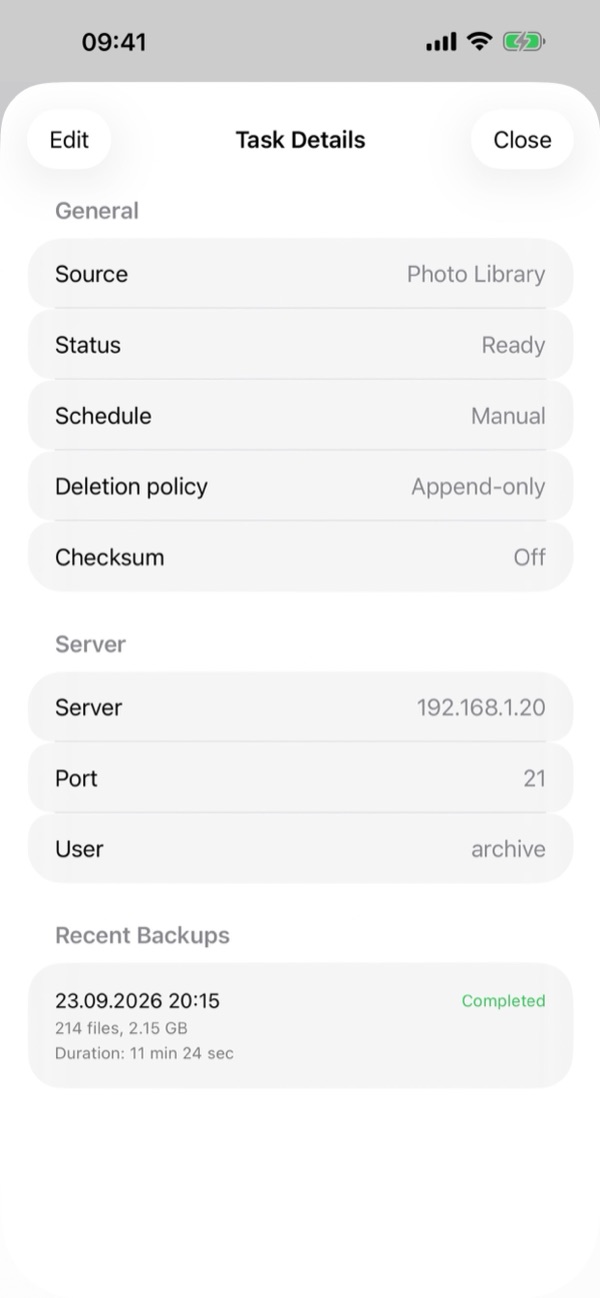
Tap any card under Saved servers on the Backup Hub to open Task Details:
- General: Review the task's Source (e.g., Photo Library or Folder), current Status (such as Ready), Schedule mode, Deletion policy, and Checksum setting.
- Server: Inspect the configured Server address, Port, and User account.
- Recent Backups: See the latest backup sessions for this specific task, including date and time, completion badge, number of files transferred, total size, and duration.
- Tap Edit at the top left to update any setting for this task, or tap Close to return to the Backup Hub.
5. Scheduling & run conditions
Under Scheduling in the task configuration, you can choose from five modes:
- Manual: Runs only when you start it manually from the Backup Hub.
- Daily: Runs once every day at the hour and minute set in Select Time.
- Weekly: Runs once a week at your chosen day and time.
- Monthly: Runs once a month at your chosen schedule.
- Interval: Runs repeatedly at a regular hour interval.
Under Backup behavior, you can restrict when automatic backups are allowed to run:
- Require Wi-Fi: Ensures backups never use cellular/mobile data.
- Require external power: Runs only while your iPhone is connected to a charger.
- Use allowed time window: Restricts scheduled runs to a specific time range (for example, overnight).
- Minimum Battery Level (configured in Settings › Battery Settings): Automatically skips scheduled runs when your battery is below the threshold.
If a condition is not met at the scheduled time, the backup waits safely and runs as soon as all conditions are satisfied.
6. Deletion policy, Checksum & iCloud
In the Backup behavior section of every task, you control how deleted files and file verification are handled:
- Deletion policy › Append-only
- Files are only added or updated on the server; nothing is ever deleted from your server. Recommended if you want to delete photos/videos from your iPhone to free up space while keeping them permanently on your server.
- Deletion policy › Mirror
- Keeps the destination folder on your server an exact mirror of your iPhone source. Files you delete on your iPhone are also deleted from the server during the next sync.
- Deletion policy › Archive delete
- No files are permanently lost. Files removed on your iPhone are moved into a dated .backupflow_archive folder on the server.
- Checksum
- When enabled, BackupFlow verifies file integrity (checksum/size verification) after uploading to ensure every file arrived on the server intact. Set to Off for maximum transfer speed.
Important tip: If you use iCloud Photos with "Optimize iPhone Storage", enable Download iCloud items if needed in the photo source options so BackupFlow can fetch full-resolution originals from iCloud before uploading them to your server.
7. Backing up in the background
BackupFlow integrates with iOS BGTaskScheduler to run scheduled backups automatically. Because iOS controls background execution timing based on battery, charging state, and device usage patterns, a scheduled task may start slightly after the exact minute selected.
- When a scheduled backup is ready, BackupFlow either runs it automatically in the background or sends a notification so you can tap to start immediately.
- If iOS pauses a background transfer before completion, simply open BackupFlow — the task resumes automatically and skips files that were already uploaded.
- Tip for your first backup: If you have thousands of photos or large 4K videos, keep BackupFlow open on screen with your iPhone connected to Wi-Fi and a charger for the initial full transfer.
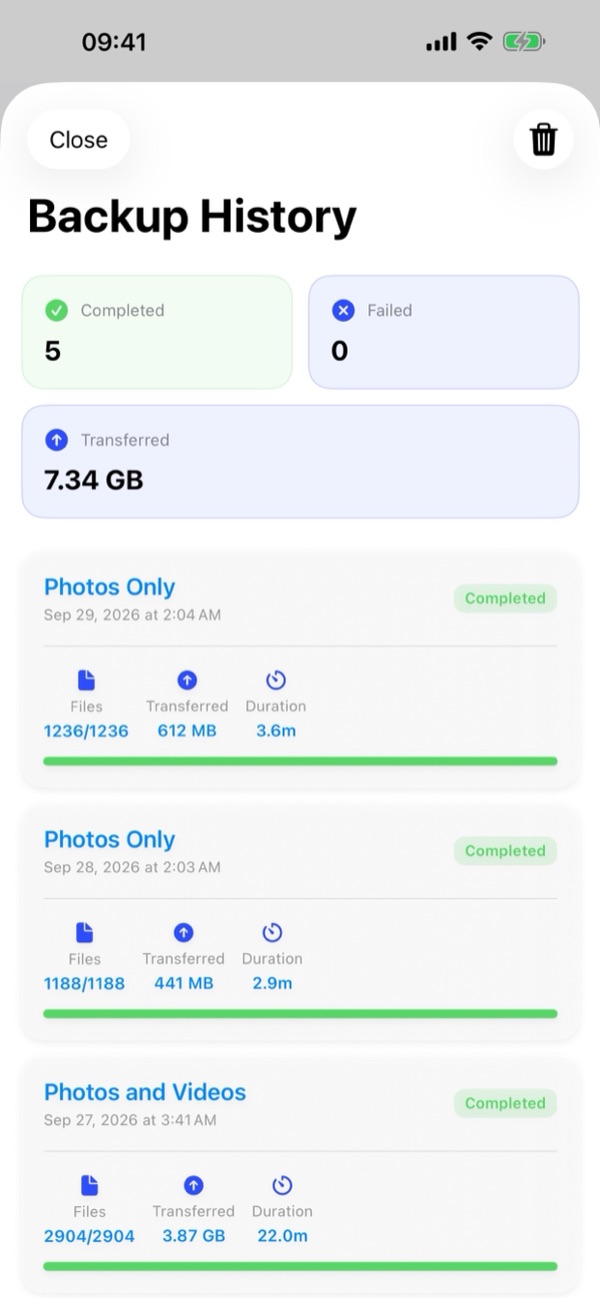
8. Backup History
Tap the History (🕒) button in the middle of the bottom bar on the Backup Hub to open Backup History:
- Summary Cards: At the top, view total Completed runs, Failed runs, and cumulative data Transferred (in MB/GB).
- Detailed Run Logs: Each card displays the task name, date and time, status badge (Completed or Failed), Files count (e.g.,
1236/1236), data Transferred, and Duration. - Clear History: Tap the trash icon (🗑️) at the top right of the Backup History screen to clear past logs.
9. App Settings
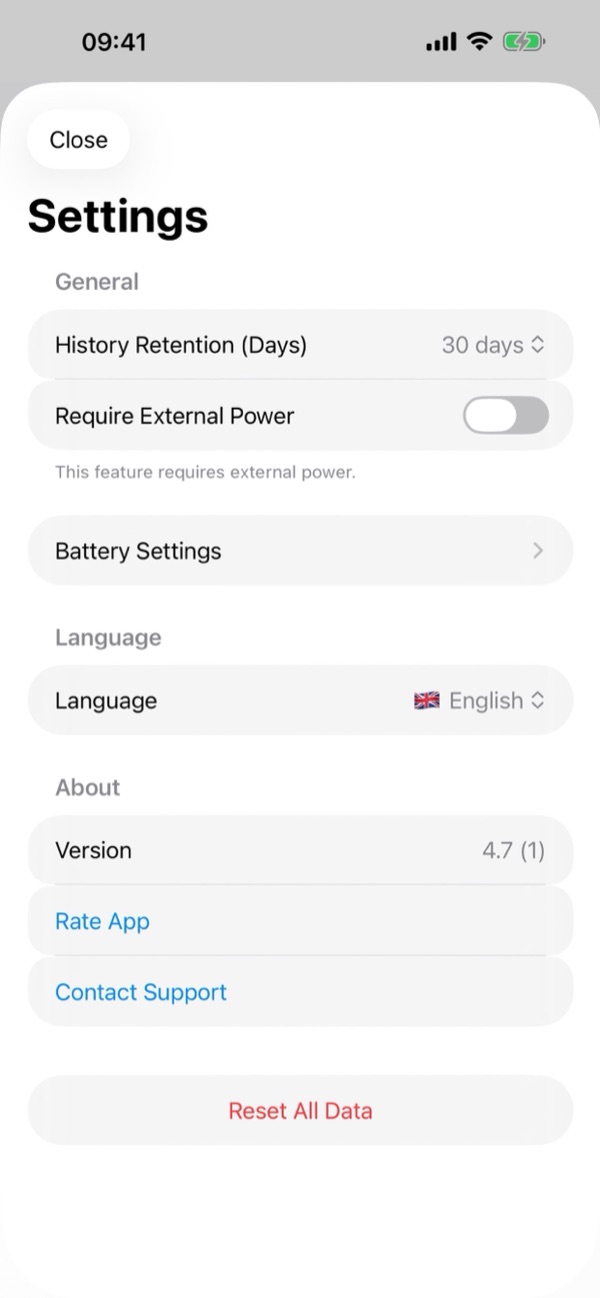
Tap the gear icon (⚙️) at the top right of the Backup Hub to open Settings:
- History Retention (Days): Choose how long backup history logs are stored on your device (e.g., 30 days).
- Require External Power: Global setting requiring the iPhone to be charging for backups to run.
- Battery Settings: Configure minimum battery level thresholds and power-saving rules.
- Language: Switch the app's interface language at any time across all 12 supported languages (English, Türkçe, Deutsch, Français, Español, Русский, العربية, 简体中文, 한국어, 日本語, Português, हिन्दी).
- About: View the installed Version, tap Rate App to leave a review on the App Store, or tap Contact Support.
- Reset All Data: Removes all configured tasks, backup history, and saved server credentials from your iPhone. Your files on your remote servers are never touched.
10. Troubleshooting
- I can't connect to my server.
- Double-check your Server Address, Port (FTP: 21, SFTP: 22, WebDAV: 443/80), Username, and Password. For Nextcloud/ownCloud WebDAV, make sure the path includes
/remote.php/dav/files/your-username/. If your server is on your local network, verify your iPhone is on the same Wi-Fi and that local network permission is enabled in iPhone Settings › Privacy & Security › Local Network › BackupFlow. - A scheduled backup didn't run.
- Check the task's Backup behavior conditions (Require Wi-Fi, Require external power, Use allowed time window) and Settings › Battery Settings. Also make sure Background App Refresh and Notifications are enabled for BackupFlow in iOS Settings.
- Some photos or videos were not backed up.
- Ensure BackupFlow has Full Access to your Photo Library in iPhone Settings › Privacy & Security › Photos, and turn on Download iCloud items if needed if you use iCloud Photos.
- Files were removed from my server after deleting them on my iPhone.
- Your task's Deletion policy is set to Mirror. Edit the task and change Deletion policy to Append-only or Archive delete.
- I see an SFTP host key security warning.
- BackupFlow remembers your SFTP server's SSH fingerprint on first connection and warns you if it changes. This is normal if you reinstalled or replaced the server; otherwise verify with your server administrator before accepting.
11. Privacy & security
BackupFlow is built with a strict local-first privacy architecture: your photos, videos, and files are transferred directly from your iPhone to your own server. BackupFlow operates no intermediate cloud servers, never accesses your files, and includes no analytics, tracking, or advertising SDKs.
Server passwords are encrypted in the iOS Keychain on your device. Read our full Privacy Policy for complete details.
12. Need help?
Open Settings › Contact Support inside BackupFlow (or email tamersavasci@icloud.com). The app automatically includes your app version and iPhone model so we can help you quickly.